 |  |
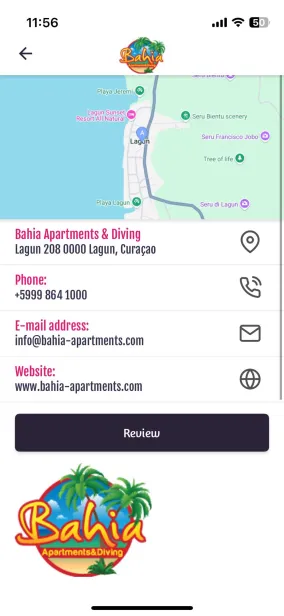
Display all your contact details at a glance with the contact building block.
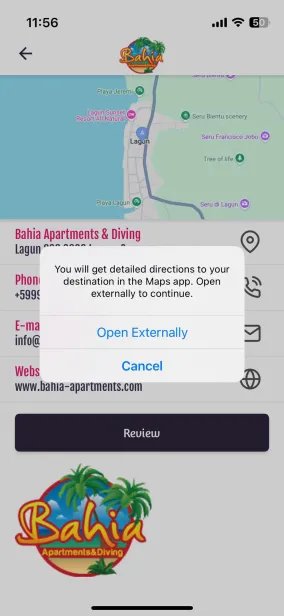
A card is automatically generated based on your address, and your phone number, email address, and website details can be opened directly using buttons.
Enter location(s)
Left column
- Select Add item on the location overview page.
- Enter a title (the name of the location).
- Enter the address, postal code, and city. The map will be generated based on this information.
- (Optional) Enter the phone number, email address, and website details. App users and/or website visitors can click on this information to take immediate action.
- (Optional) Enter text. Use the text editor to apply styling and add other elements, such as images and links.
- (Optional) Add a form
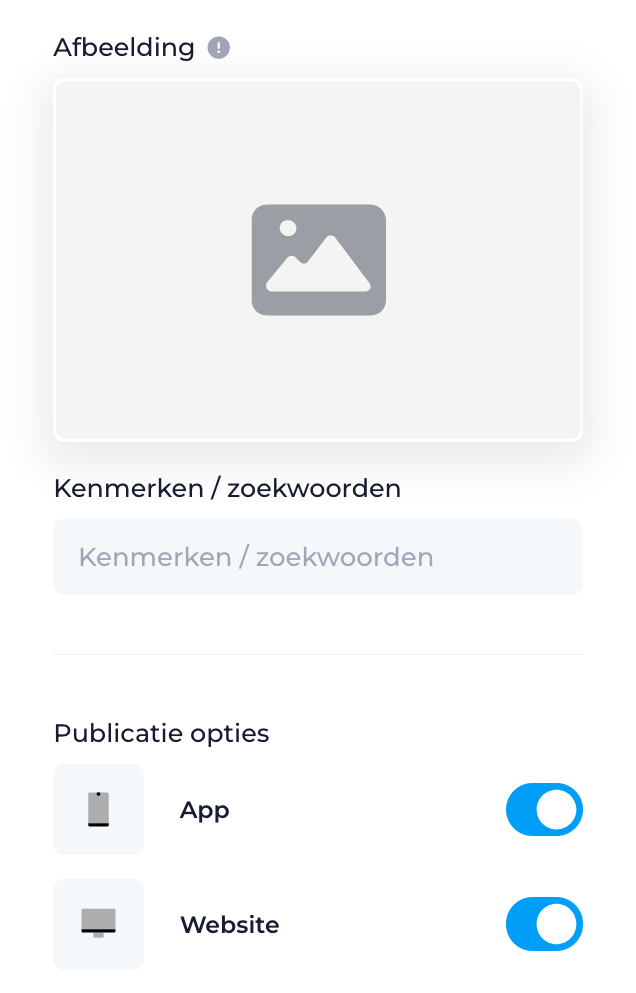
- Right column
 |
|
Additionele opties
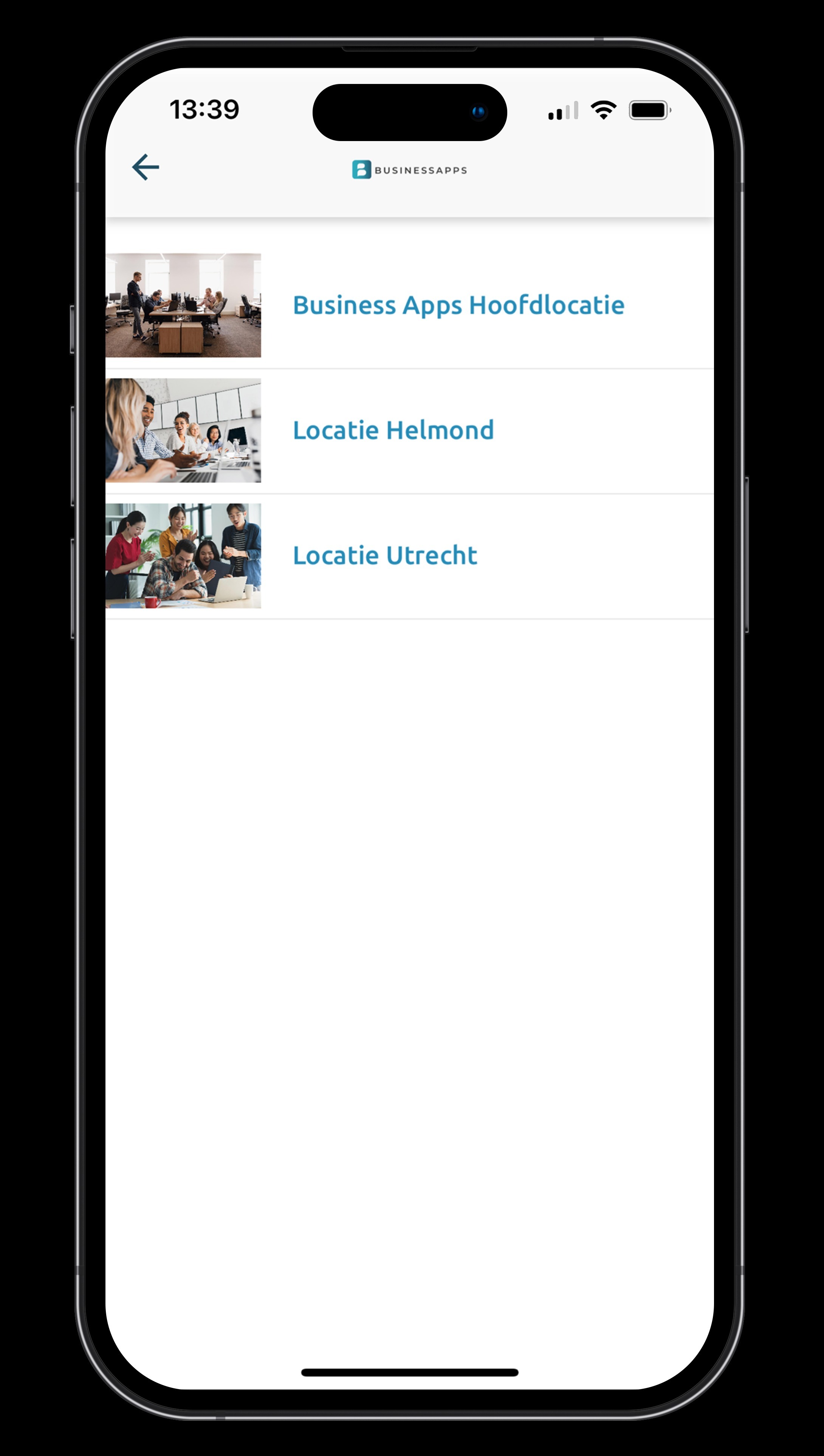
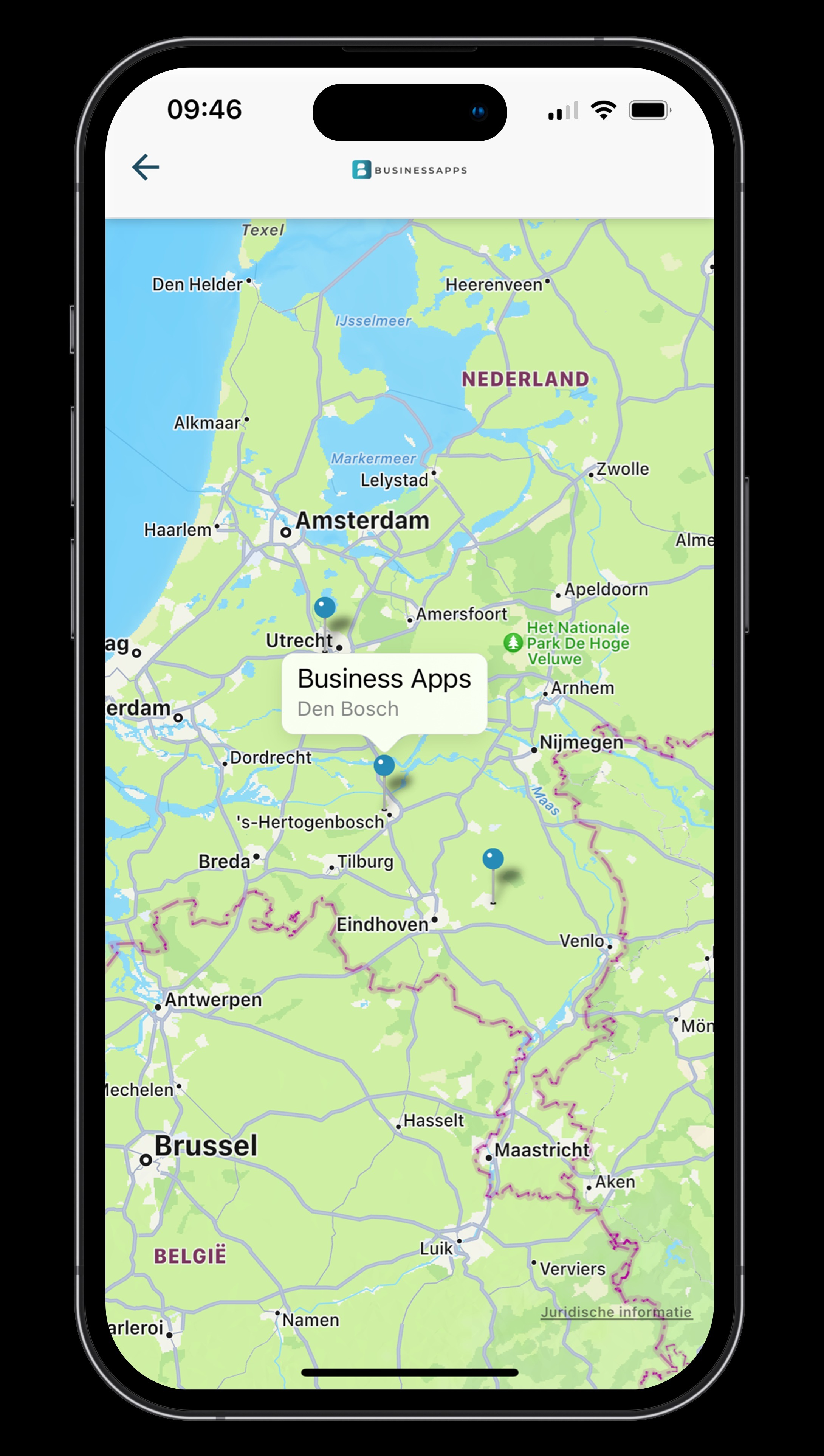
Multiple locations
Display multiple locations in your app. Choose between list view or a map with location pins.
 |  |
Is anything unclear or do you have any other questions/comments? Send us an email at office@greatstayapp.com , fill in our enquiry form or call us on +31 (0)85 40 15 336.
Was this article helpful?
That’s Great!
Thank you for your feedback
Sorry! We couldn't be helpful
Thank you for your feedback
Feedback sent
We appreciate your effort and will try to fix the article