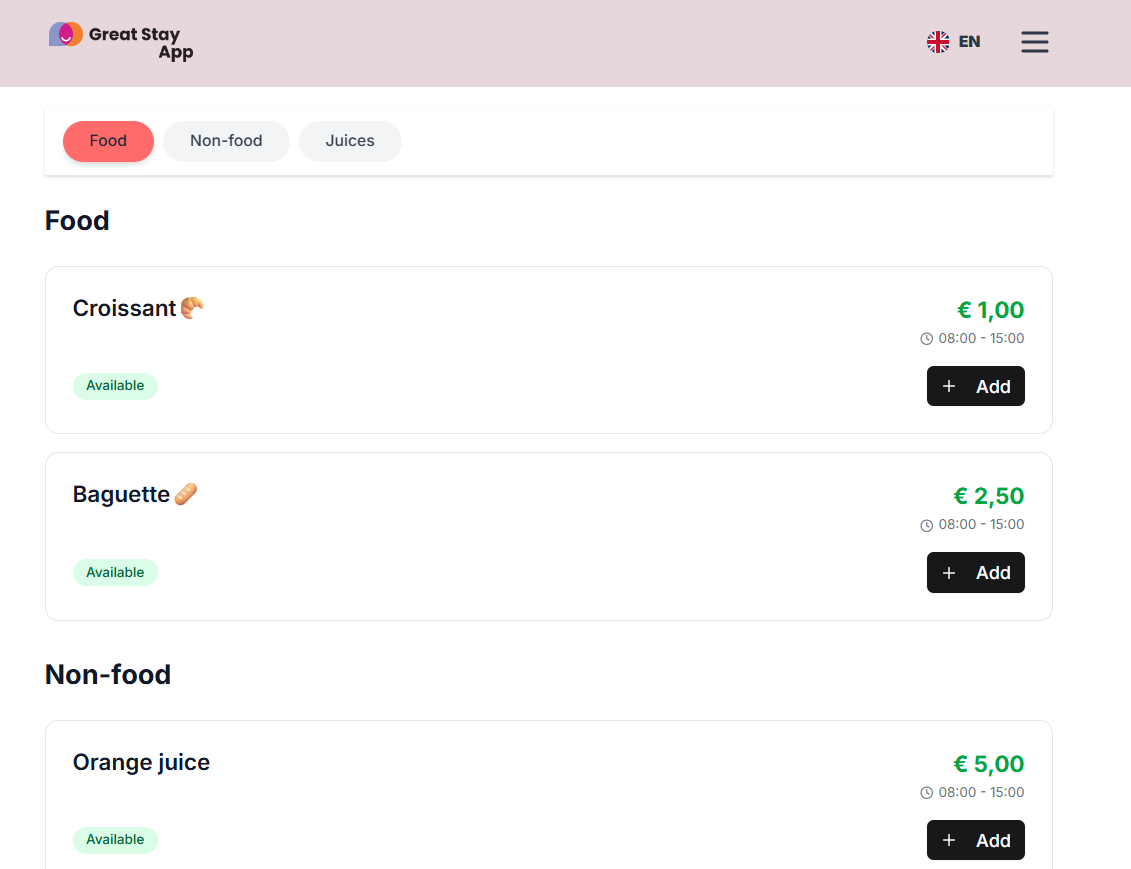
Would you like to use your web app for upselling? Then add your webshop!
Make sure Mollie and My Webshop are added to Available apps. If you have any questions about the link, please contact us by sending an email to david@greatstayapp.com.
Add categories
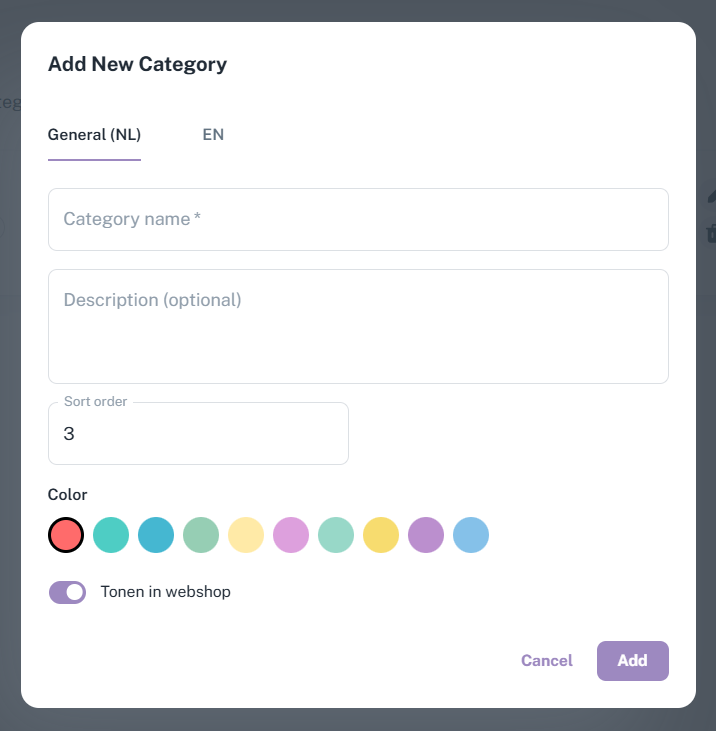
Once My Webshop and Mollie (for payment) have been added, you will see “POS System” at the bottom left of the CMS. First, add categories. To do this, click on Categories, then New Category. Here you can give the category a name, position (how many categories it will be displayed after), colour and, optionally, a description. Once you are satisfied, click Add.
Add products
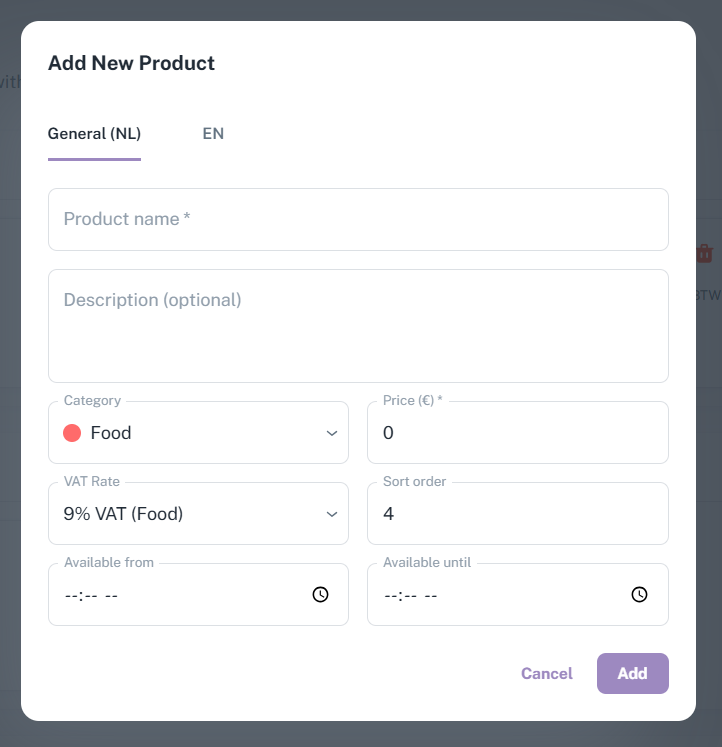
Once you have added categories, you can start adding products. Under POS System, click on Products, and then on + New Product in the top right corner. Here you can create your product and set everything up: the name, the category, the VAT rate, the order (which location it will be displayed in), the price, the time it will be available and, optionally, a description. Click on Add in the bottom right corner when everything is set up as desired.
Add the webshop to a page
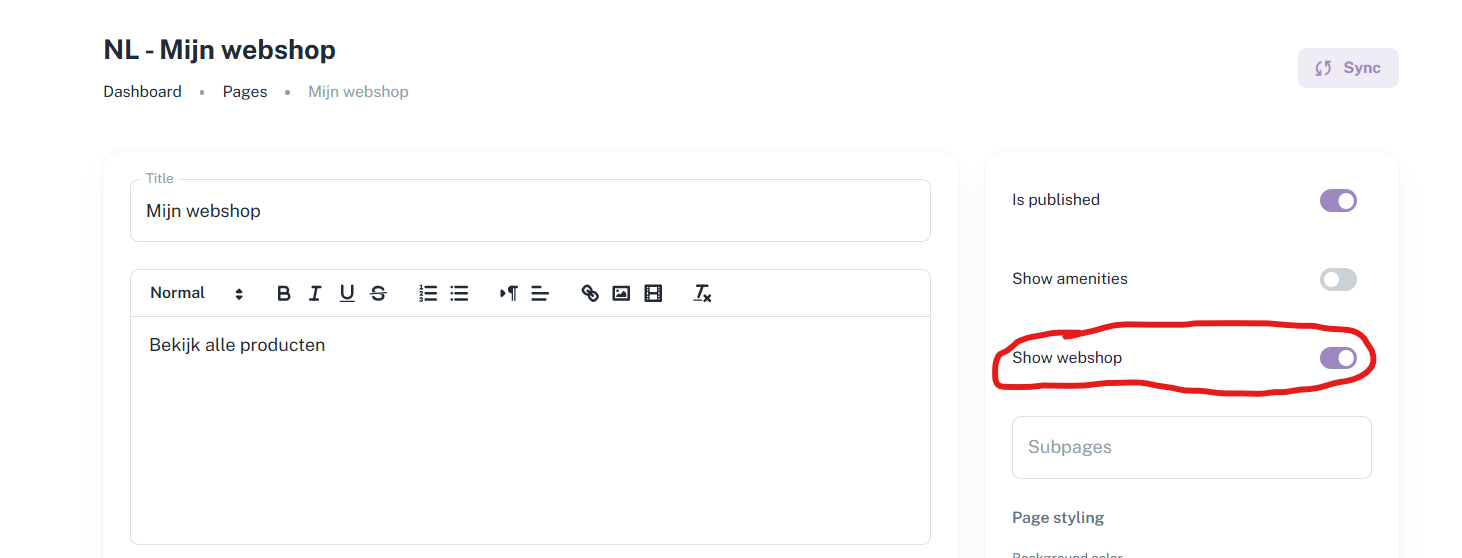
Once all categories and products have been added, you can add the webshop to a page of your choice (or create a new one for this purpose). When editing the page, tick the ‘Show webshop’ option on the right-hand side and save the page. The webshop should now be added to your web app!
Is anything unclear or do you have any other questions/comments? Send us an email at office@greatstayapp.com, fill in our question form or call us on +31 (0)85 40 15 336.
Was this article helpful?
That’s Great!
Thank you for your feedback
Sorry! We couldn't be helpful
Thank you for your feedback
Feedback sent
We appreciate your effort and will try to fix the article