With the text editor in the CMS, you can edit all your texts as you wish. In this article, we will go through all the features of the text editor.
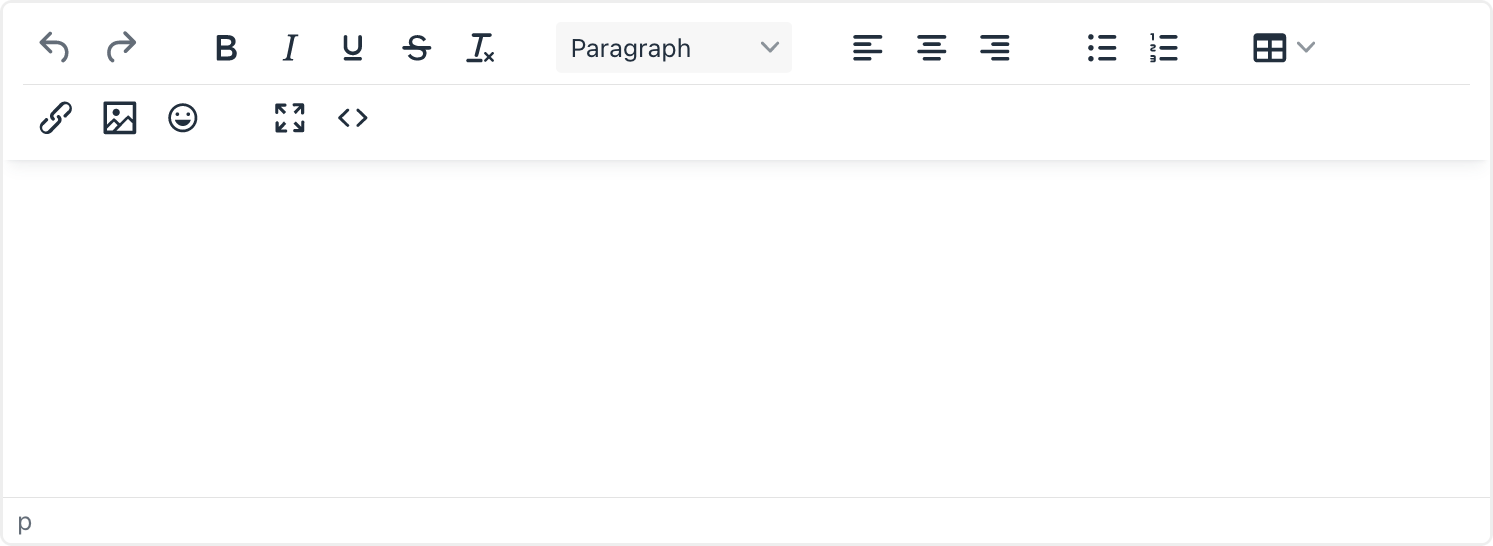
All text placed on the app or website from the CMS text editor has the same fixed styling (font, color, and accent color) and is fully responsive. Responsive text automatically scales so that you can read the text without zooming in and ensures that the text is always fully visible on any device (desktop, tablet, phone, etc.).
Overzicht functies
 | Undo / redo actions Undo or redo actions. Also available via keyboard shortcuts: CMD of CTRL + Z and CMD of CTRL + Y. |
 | Text style Make text bold, italic, underlined and/or strikethrough. The last button removes all applied formatting. |
 | Headings Convert text into a heading with matching style. |
 | Outlining Align text or elements to the left, centre, or right. |
 | List List with bullets or numbers. |
 | Table Add a new table or edit an existing table. |
 | Link Add a link or edit the properties of an existing link. Also available via keyboard shortcuts: CMD of CTRL + K |
 | Image Add a new image or edit the dimensions of an existing image. |
 | Emoji Choose from hundreds of standard emojis. |
 | Full screen The text editor fills your entire screen. Handy for extensive texts. |
 | Source code View and edit the source code (HTML) of the text. |
Pasting copied text into the CMS
To maintain the responsiveness of the text, it is important that all text is always placed as plain text in the text editor.
Paste and select a text, then use the Remove Formatting (far right) option:

Is anything unclear or do you have any other questions/comments? Send us an email at office@greatstayapp.com , fill in our enquiry form or call us on +31 (0)85 40 15 336.
Was this article helpful?
That’s Great!
Thank you for your feedback
Sorry! We couldn't be helpful
Thank you for your feedback
Feedback sent
We appreciate your effort and will try to fix the article