You can use text to add the content you want to include in your web app: text is the best way to inform your guests about certain matters.
1. Click on “Pages” on the left-hand side.
2. Click on the three dots next to the page where you want to add/edit text, and then click on “Edit”.
3. Type the text where it says ‘Write something awesome...’ or type freely to edit the text that is already there.
Above the text, you will see a bar with a bunch of icons. Below, you can see an image of where text can be edited. Below that is a list of what all the icons mean and do.
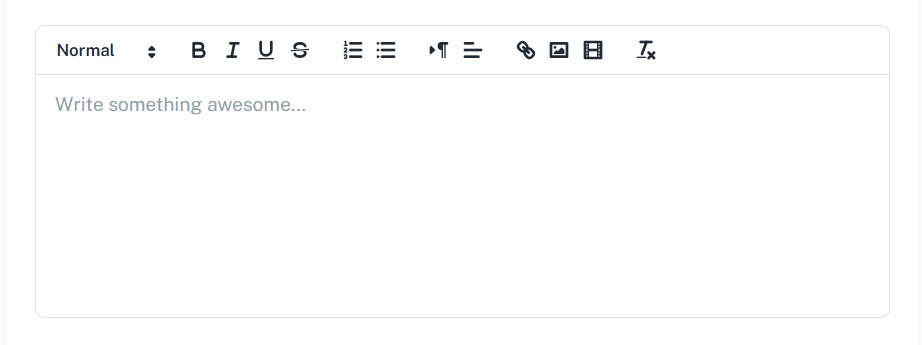
Overview functions
 | Text style Make text bold, italic, underlined and/or strikethrough. |
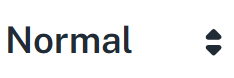 | Headings Convert text into a heading with matching style. |
 | Align Click to align text or elements to the left, in the centre (centred or across the entire width) or to the right. |
 | List List with bullets or numbers. |
 | Column layout Shows what the layout looks like. You do not need this in principle. |
 | Link Add a link or edit the properties of an existing link. |
 | Image Add a new image or edit the dimensions of an existing image. |
 | Video Enter a YouTube or Vimeo link to insert a video. Please note: YouTube Shorts do not work in this view. |
 | Remove formatting Remove all formatting applied to your selection. |
Pasting copied text into the CMS
To maintain the responsiveness of the text, it is important that all text is always pasted into the text editor as plain text.
Paste and select a text, then use the Remove formatting (far right) option:

Is anything unclear or do you have any other questions/comments? Send us an email at office@greatstayapp.com, fill in our enquiry form or call us on +31 (0)85 40 15 336.
Was this article helpful?
That’s Great!
Thank you for your feedback
Sorry! We couldn't be helpful
Thank you for your feedback
Feedback sent
We appreciate your effort and will try to fix the article