Location
If you have the ‘notice board’ building block, it may look like this:
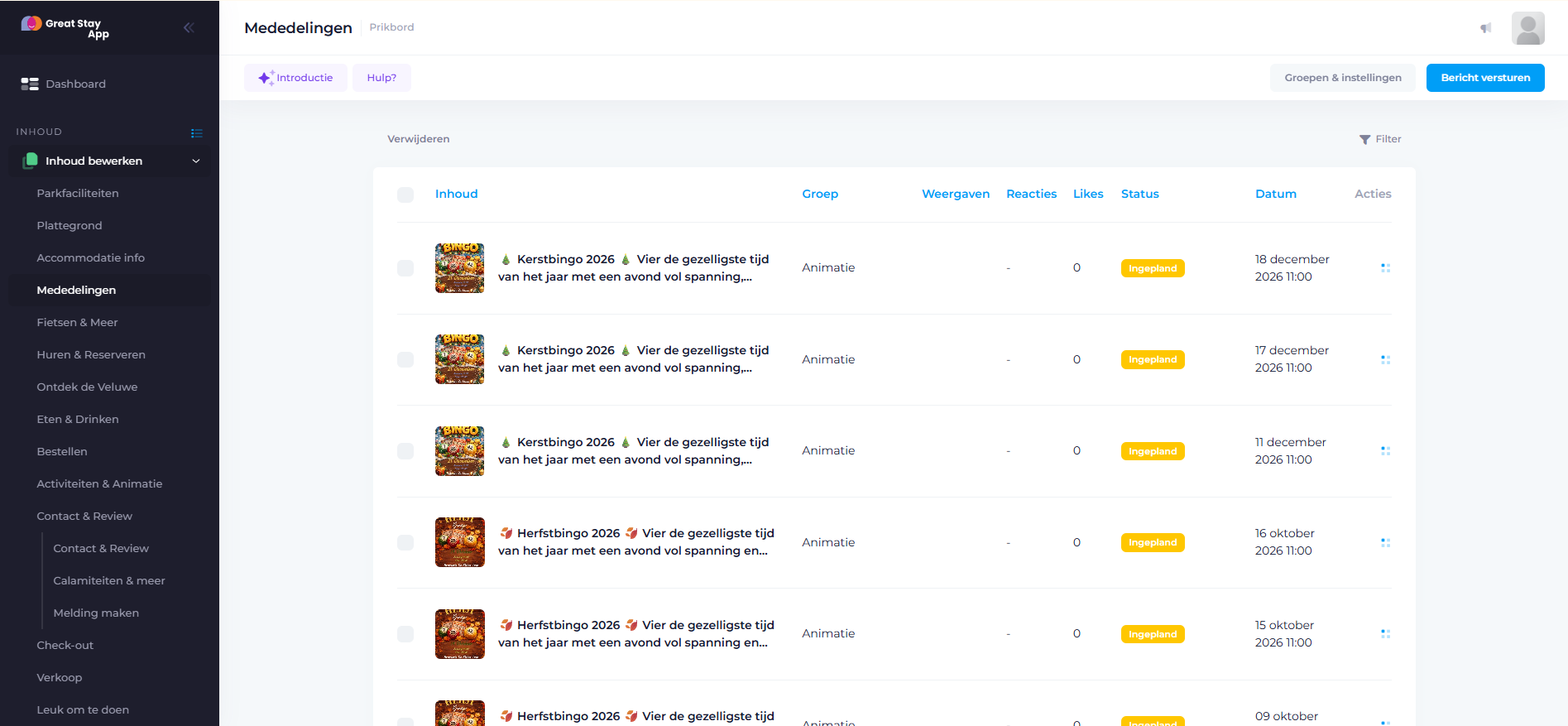
Click on the “Send message” button to compose a new message.
Posting a message
Left column
- At the top of the next screen, select the group in which the message will be published.
 If your Administrator account is only linked to specific groups, you can only send messages to these groups.
 - You can compose plain text in the text editor of the notice board functionality. In addition to text, you can also add photos, videos, forms and files to the notice board message.

- (Optional) Add a link to a YouTube or Vimeovideo.
(Optional) Add a form.
Right column
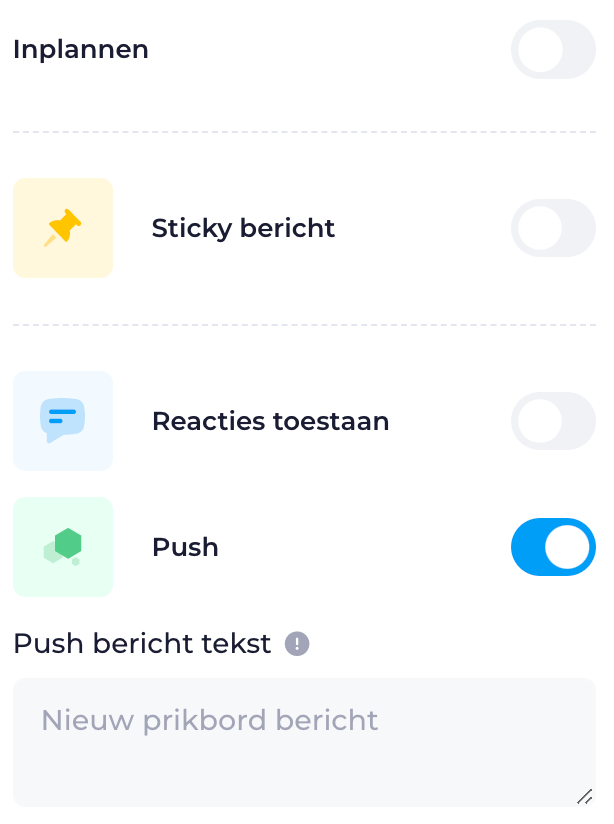
- In het rechtermenu kun je aangeven of het bericht als sticky bericht bovenaan in het prikbord moet worden weergegeven
- of de eindgebruikers reacties kunnen plaatsen
- en of er wel of geen push notificatie gekoppeld is aan het bericht.
- Vul (optioneel) zelf een tekst in voor de push notificatie
- In het rechtermenu kun je aangeven of het bericht als sticky bericht bovenaan in het prikbord moet worden weergegeven
- Save the message as a draft if you want to edit it later. Once your message is ready, click “send”. The message will appear in the app for end users linked to the relevant group.
Is anything unclear or do you have any other questions/comments? Send us an email at office@greatstayapp.com , fill in our enquiry form or call us on +31 (0)85 40 15 336.
Was this article helpful?
That’s Great!
Thank you for your feedback
Sorry! We couldn't be helpful
Thank you for your feedback
Feedback sent
We appreciate your effort and will try to fix the article