You can easily set your own colours on the web app by following the steps below:
1. Click on the top left where the name of your accommodation is displayed, next to which the first letter of the accommodation is displayed in large letters in a circle.
2. Click on “Metadata” at the top centre.
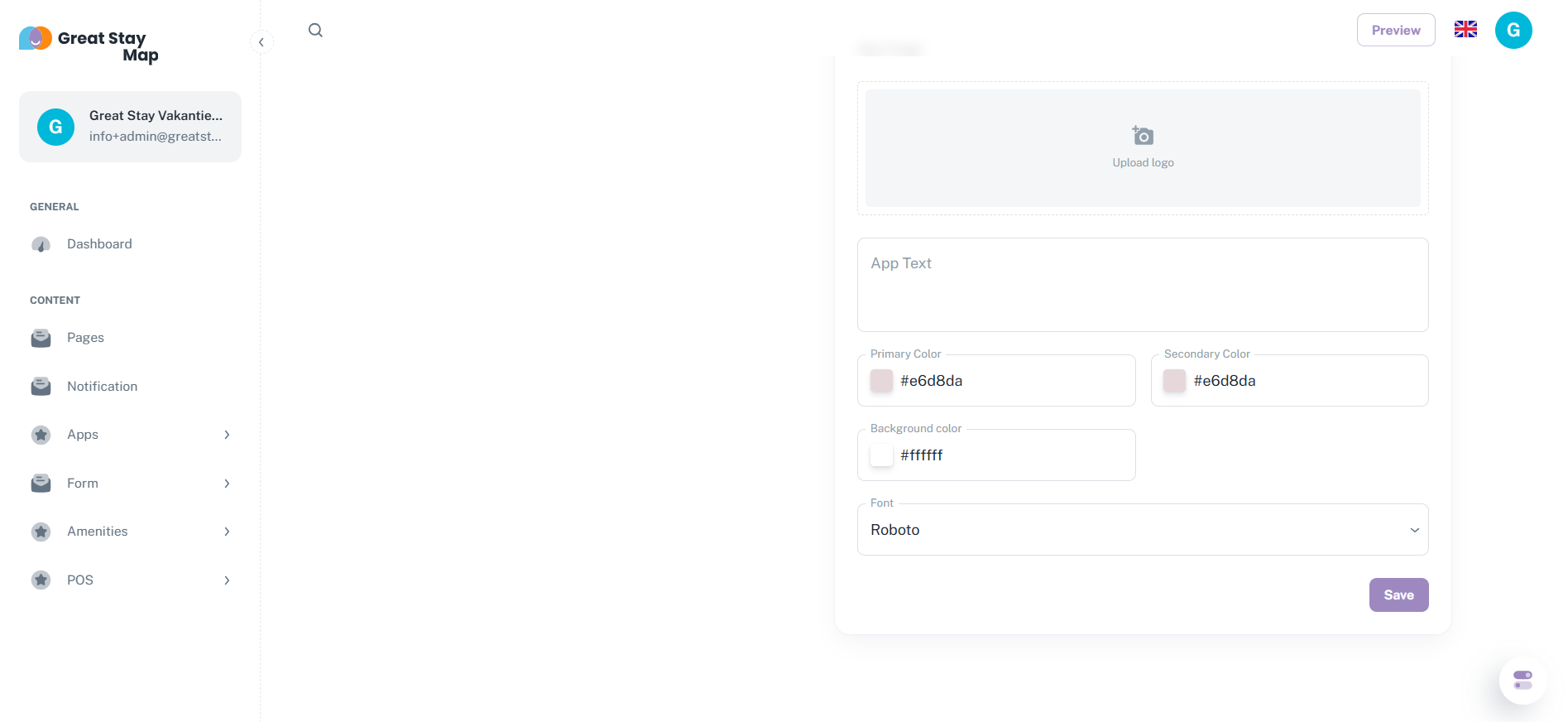
3. Scroll down until you see the colours.
4. For the top bar (header), bottom bar (footer) and the colour behind the buttons, fill in the space under Primary colour with the hexadecimal colour code.
5. For the colour behind the buttons and the colour of the Form buttons, fill in the space under Secondary colour with the hexadecimal colour code.
6. For the background colour of the main page, fill in the space under Background colour with the hexadecimal colour code.
7. Press the purple ‘Save’ button at the bottom
Don't know your hexadecimal colour code? No problem! Here's how to find it:
1. Go to https://imagecolorpicker.com
2. Scroll down and press ‘Use your image’
3. Upload the image from which you want to extract the colour
4. Tap the area of the image that contains the colour you want, and the colour code will appear below the image
Would you like colour advice? We can help! Contact us, and we will take a look at the web app and suggest some colours that would work well. Send us an email at office@greatstayapp.com, fill in our enquiry form or call us on +31 (0)85 40 15 336.
You can add colour codes in both hexadecimal and RGB formats. If you enter it in RGB, it will automatically convert to hexadecimal. Not sure what your hexadecimal codes are? Go to https://imagecolorpicker.com/, add your image and click on the colour in the image for which you want to know the hexadecimal code.
The primary colour is the most prominent colour on your web app. This is the colour of the top bar (header) and bottom bar (footer).
The secondary colour is the colour behind the buttons, the colour of the buttons in Forms, and determines the colour of the text. If the secondary colour is light, the text will be black. If the secondary colour is dark, the text will be white.
The page background colour is the colour of the background of the main page. Please note: if you want this colour everywhere, you will have to enter it manually for each page.
Is anything unclear or do you have any other questions/comments? Send us an email at office@greatstayapp.com, fill in our enquiry form or call us on +31 (0)85 40 15 336.
Was this article helpful?
That’s Great!
Thank you for your feedback
Sorry! We couldn't be helpful
Thank you for your feedback
Feedback sent
We appreciate your effort and will try to fix the article