Want to give your web app a nice visual extra? Set a slider image! Here's how:
1. Tap on the top left where the name of your accommodation is displayed, next to which the first letter of the accommodation is displayed in large letters in a circle.
2. Tap on “Metadata” at the top centre.
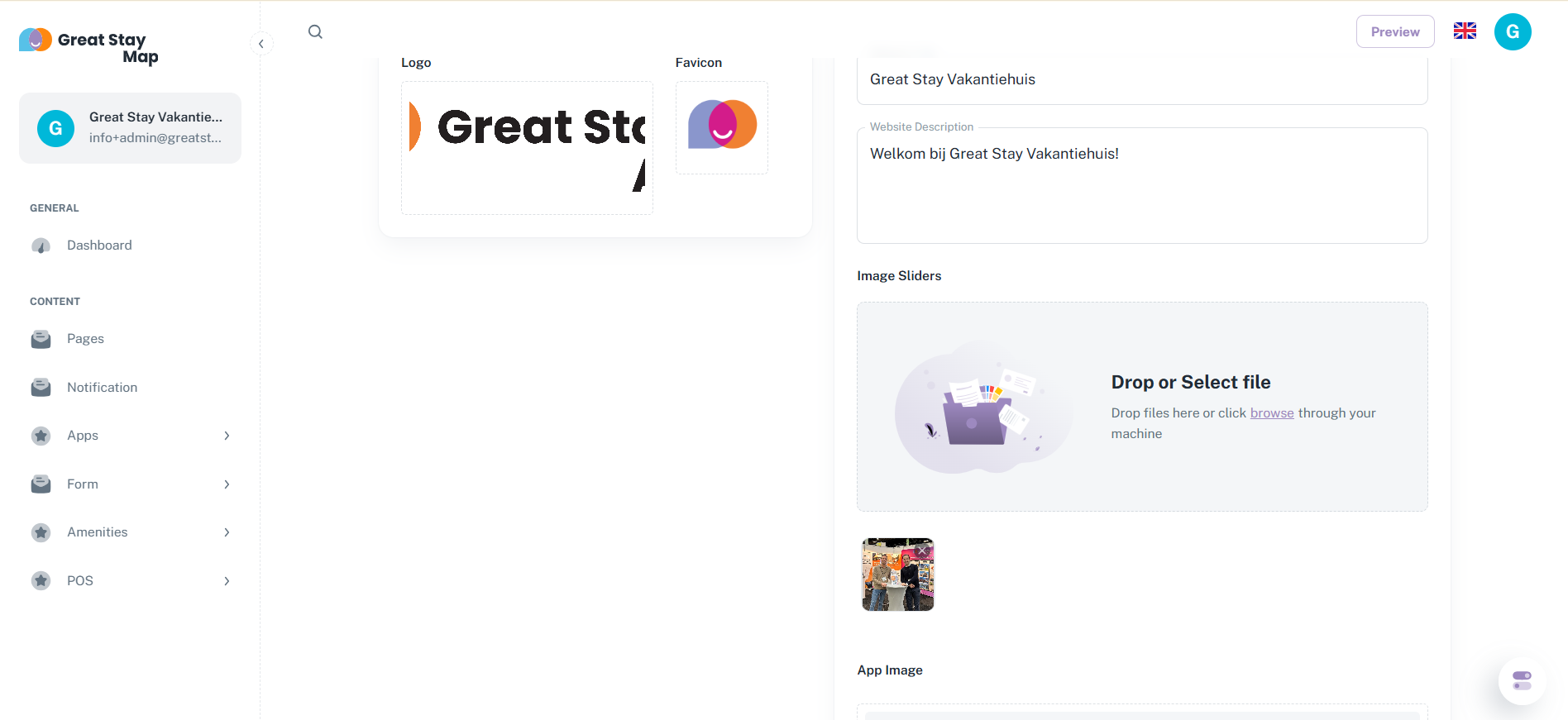
3. Click on the space under “Image Sliders”.
4. Select the photo you want to use (PNG or JPG).
5. Scroll down and click on the purple “Save” button.
The system allows you to add multiple slider images if you want, which is of course also very cool! However, it is one of our newest features; the use of multiple slider images does not yet work entirely smoothly. Sometimes the web app does not actually display an image, especially if you use other languages. Our tip: use one powerful image, this works really well (even in other languages)!
Below you can see what it looks like in the CMS. Would you like to see what it looks like on a web app? Take a look at our sample web app.
Is anything unclear or do you have any other questions/comments? Send us an email at office@greatstayapp.com, fill in our enquiry form or call us on +31 (0)85 40 15 336.
Was this article helpful?
That’s Great!
Thank you for your feedback
Sorry! We couldn't be helpful
Thank you for your feedback
Feedback sent
We appreciate your effort and will try to fix the article