The list building block allows you to make multiple information pages and PDF documents available in the app or on the website.
Messages are displayed in a chronologically sorted list. The latest message is always placed at the top.
There are two content types available in the list building block: list items and PDF documents..
 Add list item | Easily link videos and forms to an item via the content editor in the CMS and use the text editor in the CMS to add text, styling, tables, links and images. |
 Add PDF | Use this option to integrate PDF files directly into the app. |
In the CMS, you can see which administrator created or modified an item, and when this occurred.
Add new component
Select Add List Item or Add PDF on the overview page.
Left column (list component)
- Fill in a title
- Enter the text. Use the text editor to apply styling and add other elements, such as images and links.
(Optional) Add a link to a YouTube or Vimeo video.
- This link always starts with https://www.youtube.com/watch or https://vimeo.com/. To find the correct link, open the video on your computer. You will then find the link in the address bar of your browser (e.g. Internet Explorer, Safari, Firefox or Chrome). Please note: YouTube Shorts do not work.
(Optional) Add a form
Left column (PDF)
- Fill in a title
- Press browse and select a PDF-file on your computer.
Right column
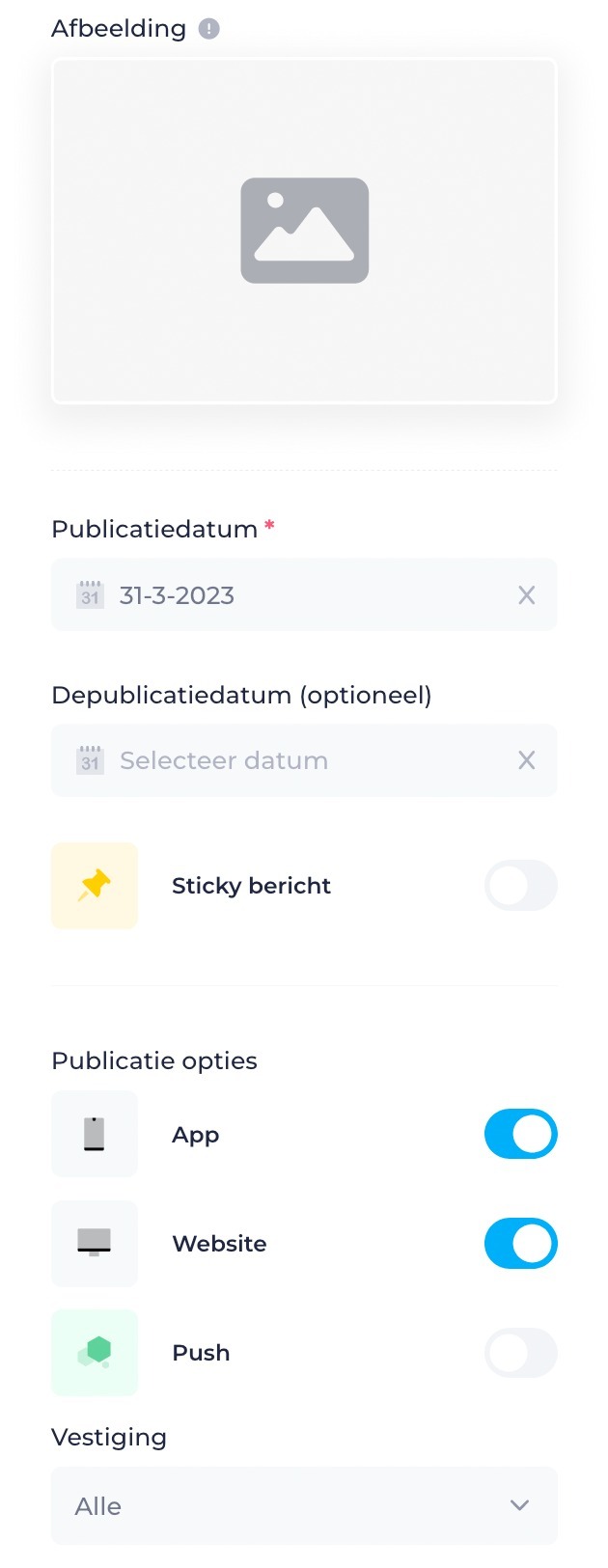 |
|
PDF as a book
Do you want to add your PDF file as a nice booklet in your app (click to view an example)? Contact us, we can arrange something for you.
Is anything unclear or do you have any other questions/comments? Send us an email at office@greatstayapp.com , fill in our enquiry form or call us on +31 (0)85 40 15 336.
Was this article helpful?
That’s Great!
Thank you for your feedback
Sorry! We couldn't be helpful
Thank you for your feedback
Feedback sent
We appreciate your effort and will try to fix the article