 |  |  |
The events building block shows all upcoming and, if applicable, past events around your location. You can enter these yourself.
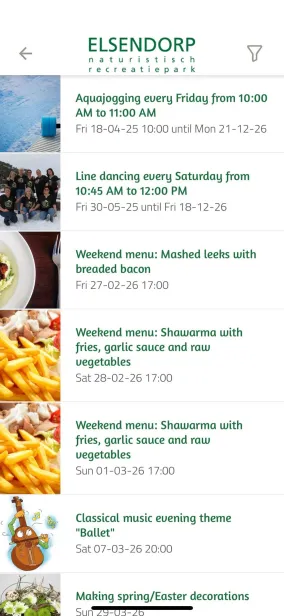
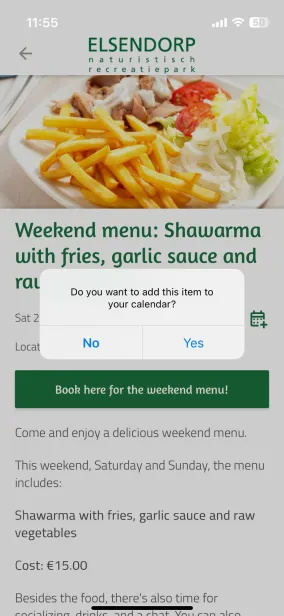
Above you can see an example of what the events page could look like: a chronologically sorted list of events (which are entered manually), enough space per event to provide additional information (you can even link registrations) and the option for guests to add the event to their own calendar.
Events are displayed in a chronologically sorted list, but a calendar view is also available on our websites. In a list, the next event is always placed at the top.Evenementen worden in een chronologisch gesorteerde lijst weergegeven, maar op onze websites is ook een kalenderweergave beschikbaar. In een lijst wordt het eerstvolgende evenement altijd bovenaan geplaatst.
Manage categories
Before entering events, it may be useful to create a number of categories.
- Click Manage categories on the events overview page.
Select Add category, enter a suitable name, and click Save.
Entering a new event
Left column
- Enter a title.
(Optional) Enter the location, address, and/or city.
(Optional) Enter the text. Use the text editor to apply styling and add other elements, such as images and links.
(Optional) Add a form.
Right column
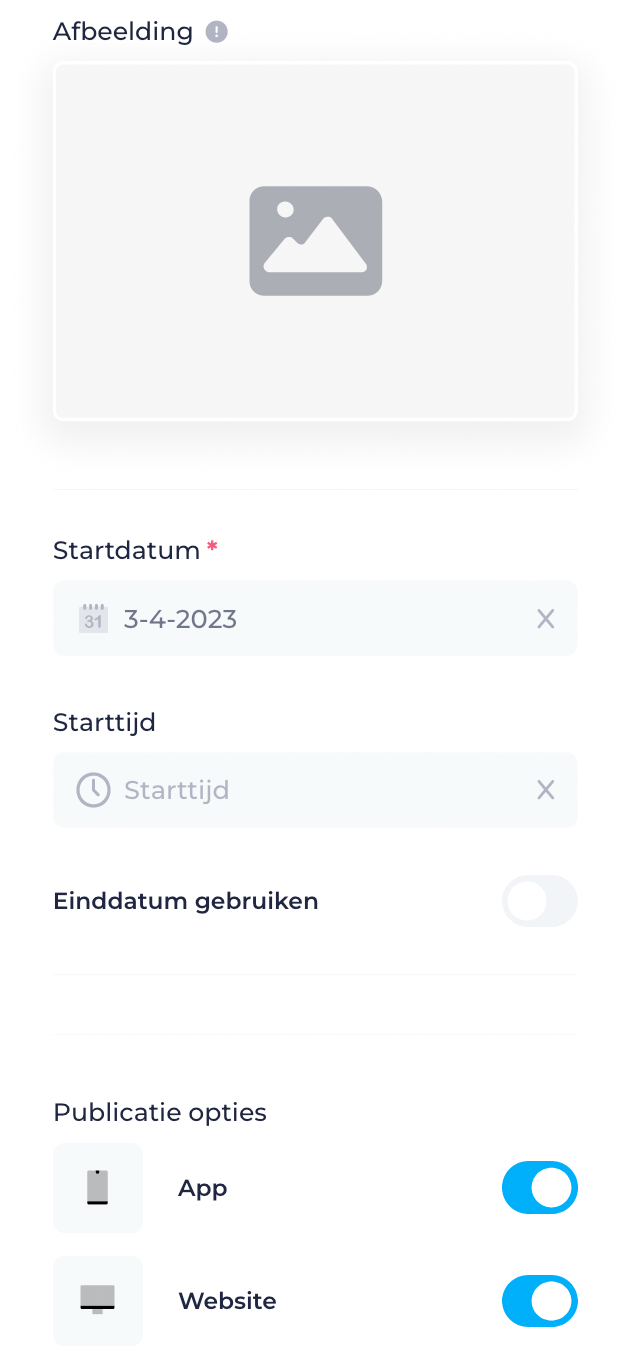 |
|
Additional options
Users can sign up for this event
If this option is checked, users can send an email from the app to register for an event.
Is anything unclear or do you have any other questions/comments? Send us an email at office@greatstayapp.com , fill in our enquiry form or call us on +31 (0)85 40 15 336.
Was this article helpful?
That’s Great!
Thank you for your feedback
Sorry! We couldn't be helpful
Thank you for your feedback
Feedback sent
We appreciate your effort and will try to fix the article