 | 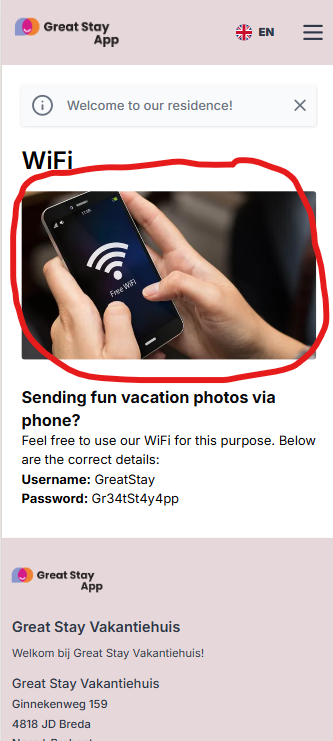 |
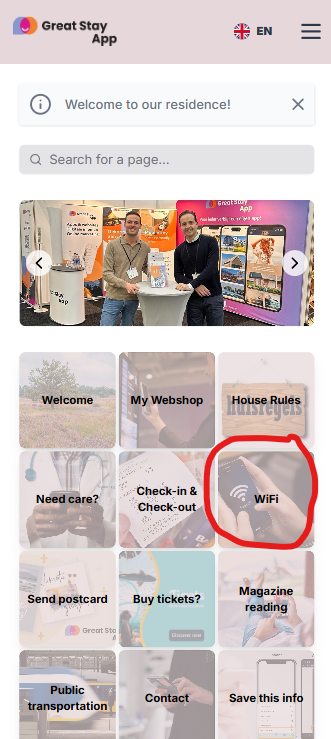
A cover/background photo is, of course, very important: it gives your web app its look and feel. But how do you set up a background photo?
1. Click on “Pages” on the left-hand side.
2. Press the three dots next to the page where you want to add/edit text, and click on edit
3. Scroll down until you see ‘Cover’. Press the space below
4. Upload a PNG or JPG file from your documents that you want to set as the background image.
5. Click on the purple ‘Save’ button on the right-hand side.
Sometimes your image may be too large, in which case you will need to reduce (compress) the document. You can do this on this website, completely free of charge.
If there is already an image, but you want to change it, you can do so by clicking on the image. Your documents will open, where you can choose a different image. Don't forget to click on the purple ‘Save’ button afterwards!
Would you like to remove the existing image? Then click on the cross in the top right-hand corner of the image (not displayed for guests in the web app). Don't forget to click on the purple “Save” button afterwards!
Can I also set an image as the background photo for the tile, but then it is no longer visible on the relevant page?
No, unfortunately this is not possible.
Great Stay App also offers icon packs. These allow you to give your web app a simple but elegant look. Would you like more information? Send David an email at david@greatstayapp.com.
Is anything unclear or do you have any other questions/comments? Send us an email at office@greatstayapp.com, fill in our enquiry form or call us on +31 (0)85 40 15 336.
Was this article helpful?
That’s Great!
Thank you for your feedback
Sorry! We couldn't be helpful
Thank you for your feedback
Feedback sent
We appreciate your effort and will try to fix the article