Now that you have created categories and amenities, it is finally time to make them visible on the web app.
1. Click on “Pages” on the left-hand side.
2. On the page where you want to add the amenities, click on the three dots on the right-hand side.
3. Click on Edit.
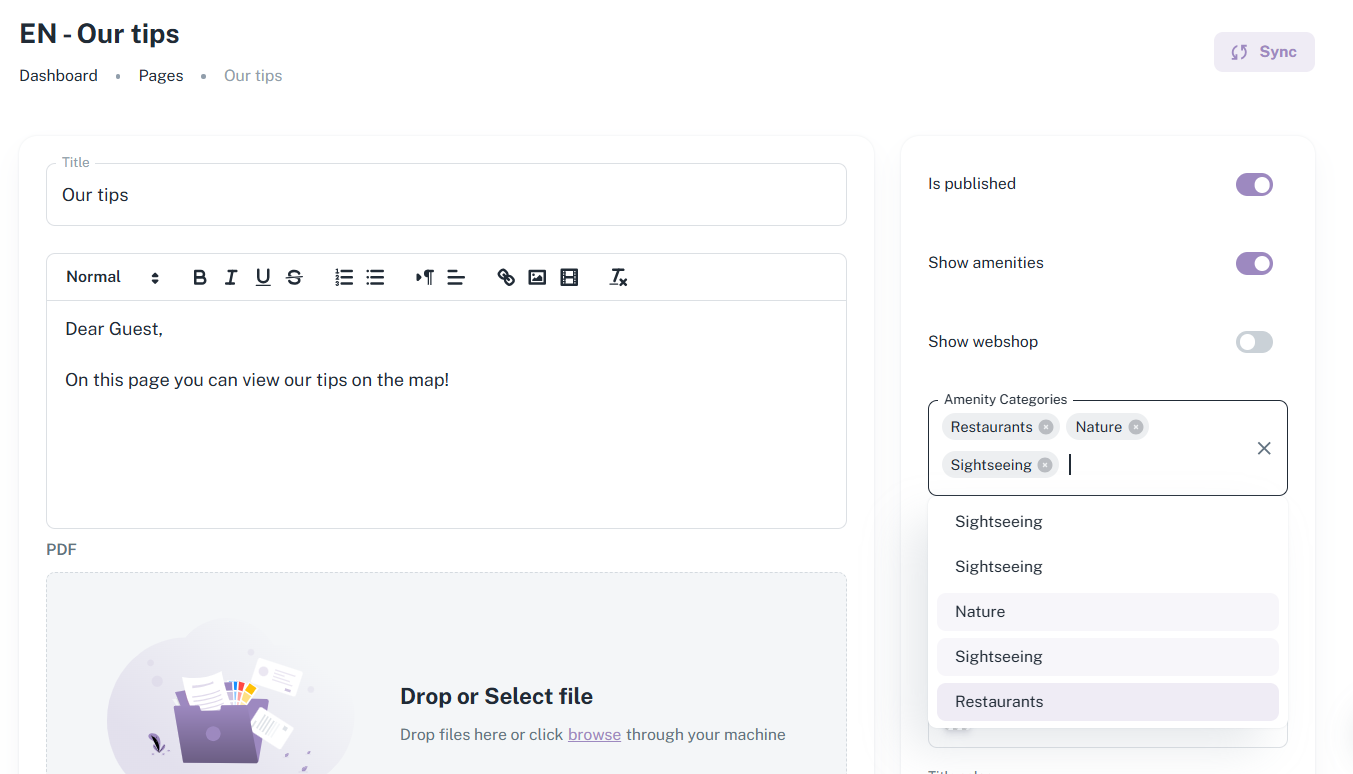
4. On the right-hand side, next to “Show amenities”, click on the bar. The bar with “Amenity Categories” will now appear.
5. Tap the space under ‘Facility Categories’. Select the category you want to add. All facilities you have linked to this category will be visible to guests.
6. Once you have added all the categories you want, scroll down and tap the purple ‘Save’ button.
Please note: you do not need to add all the categories you have created to a page where you want to display tips. This can be useful: for example, you can create a category called ‘Emergencies’ to which you add hospitals and GPs, and not select this category for the ‘Our tips’ page, where you would add restaurants and places of interest.
Please note! You can only add facilities to pages that have already been created. If you want to create a new page and add the categories straight away, the CMS will give an error message. First create the page, and then edit it after it has been created. Then you can add the facilities without any problems!
On the right side on the picture below, you see "Show amenities" clicked on. Under "Amenity Categories" you choose the categories you want to show on said page!
Is anything unclear or do you have any other questions/comments? Send us an email at office@greatstayapp.com, fill in our enquiry form or call us on +31 (0)85 40 15 336.
Was this article helpful?
That’s Great!
Thank you for your feedback
Sorry! We couldn't be helpful
Thank you for your feedback
Feedback sent
We appreciate your effort and will try to fix the article