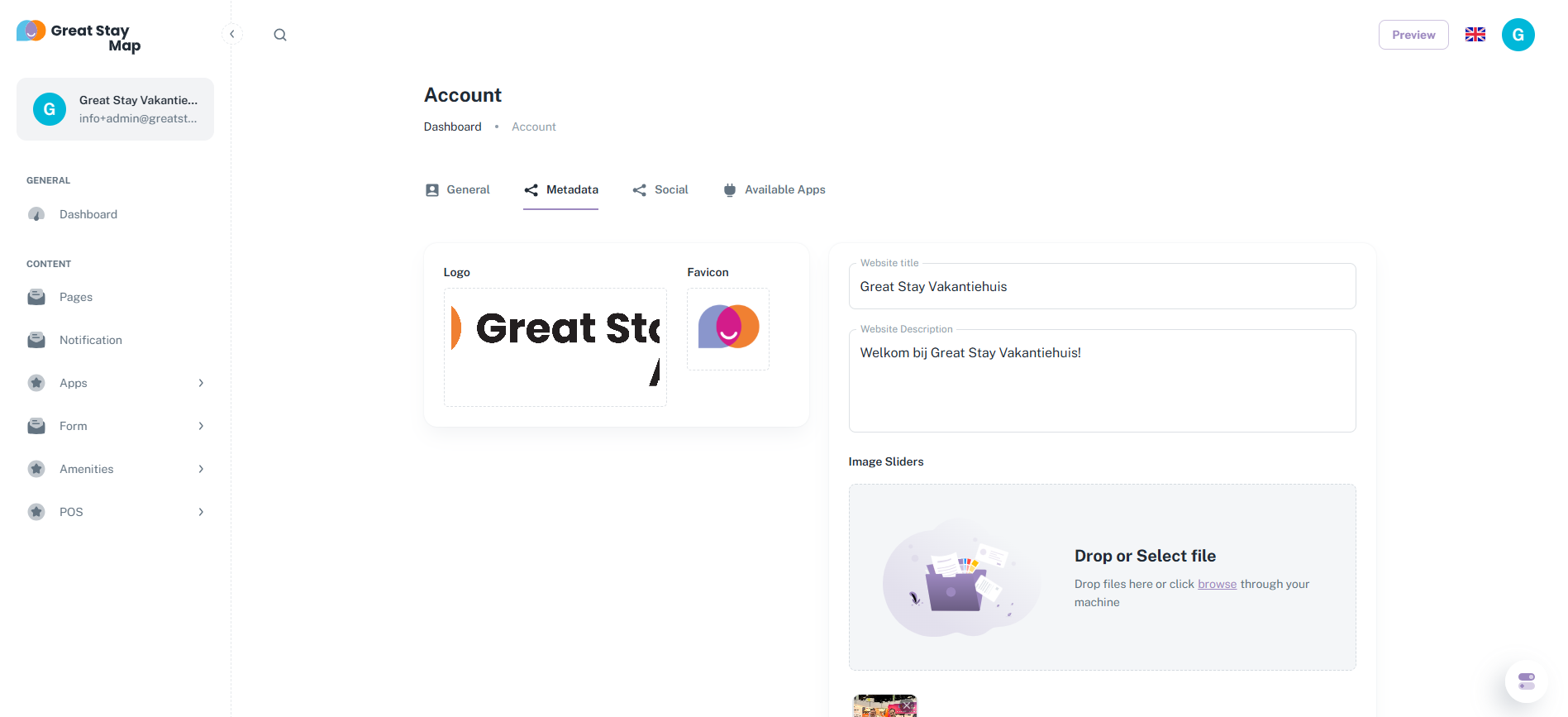
1. Click on the top left corner where your accommodation's name is located, next to which the first letter of the accommodation is written in a large circle.
2. Click on "Metadata" in the top center.
3. Click on the empty space/logo under "Logo" and upload your logo (JPG or PNG).
4. Click on the empty space/logo under "Favicon" and upload your favicon (JPG or PNG).
You can enter your logo and favicon by hovering over the box below the logo and favicon respectively (hold your mouse over them without clicking) and then clicking. Your documents will then open, and you can select your logo and favicon. You can also grab your logo and favicon from your documents/desktop and drag them into the box below the logo and favicon.
What is your favicon? When viewed online, your favicon is the icon that appears at the top of the web page's bar. On mobile devices, it's the image displayed when someone saves the web app as an app icon.
Our tips for the logo: make sure to save your logo as a PNG file with a transparent background. If you don't, a white square will appear around the logo, which will look much worse. For the favicon, either option is fine; it depends on your personal preference.
Is anything unclear or do you have any other questions/comments? Send us an email at office@greatstayapp.com, fill in our enquiry form or call us on +31 (0)85 40 15 336.
Was this article helpful?
That’s Great!
Thank you for your feedback
Sorry! We couldn't be helpful
Thank you for your feedback
Feedback sent
We appreciate your effort and will try to fix the article