Log in here: https://admin.greatstaymap.com/
Below you see the screen you'll see when you log in to the web app's CMS. Below that is the same screen, but with explanations you can click on.
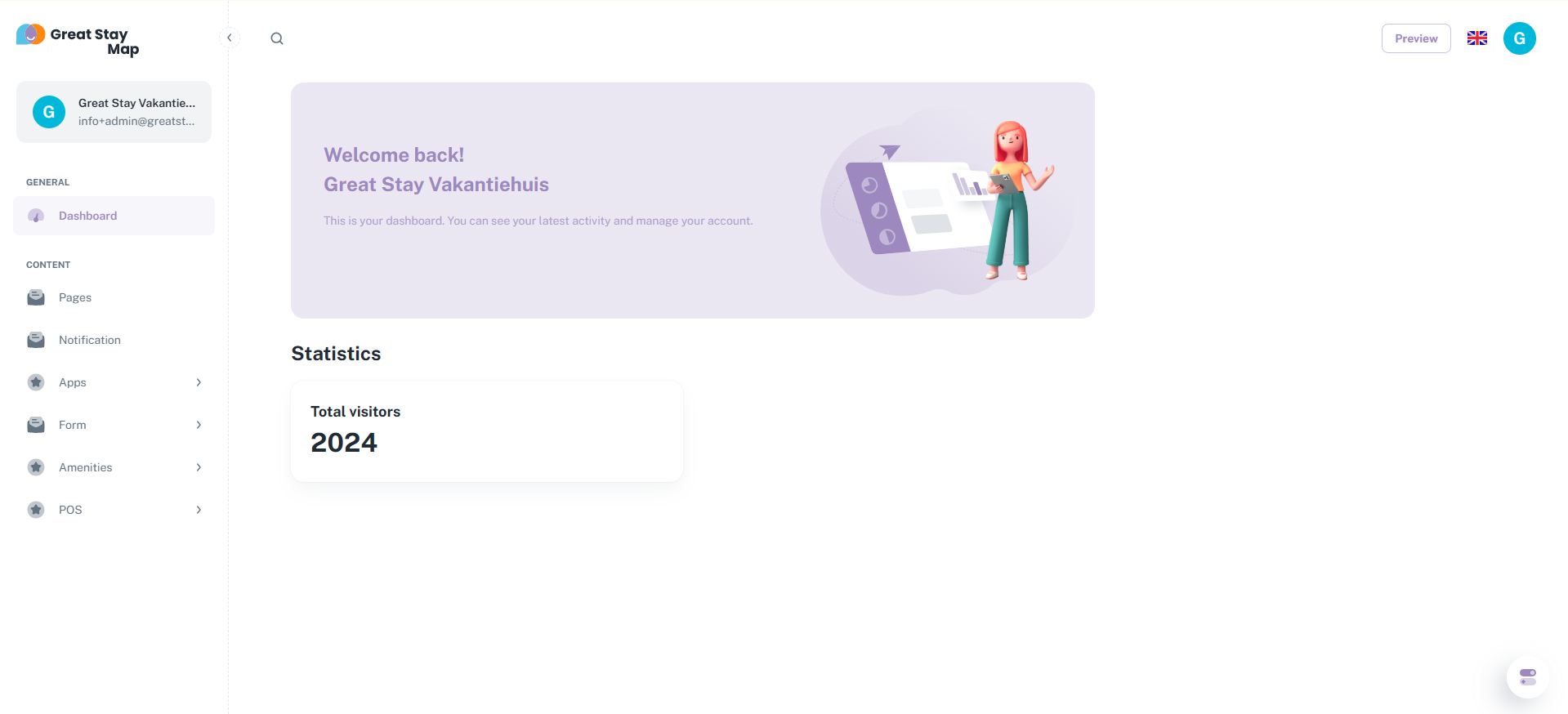
On the left side, you can see the name of your web app and its associated email address in the top left corner (the blue G in the screenshot). Clicking on it will take you to your account.
At the bottom right, you'll see a round button with two bars. Here you can set the web app to dark mode (it's in light mode by default). This doesn't affect the content, but it will make the CMS appear black and white instead of white and black. You can turn it on if you prefer. You can also turn it off again in the same location.
Under Content, you can adjust various things: Pages, Notification, Apps, Form, and Services. Clicking on Pages or Notification will take you directly to the relevant page where you can make changes. In the Forms and Services section, you must first select the option you want (for the form, select "Forms" or "Create Form," and for Services, select "All Services" or "All Categories"). You'll never need apps, so there's no point in clicking on them or trying to make any changes.
Is anything unclear, or do you have any other questions/comments? Is anything unclear or do you have any other questions/comments? Send us an email at office@greatstayapp.com, fill in our enquiry form or call us on +31 (0)85 40 15 336.
Was this article helpful?
That’s Great!
Thank you for your feedback
Sorry! We couldn't be helpful
Thank you for your feedback
Feedback sent
We appreciate your effort and will try to fix the article