Linking a form to a page
1. Create a form (see Creating forms)
2. Go to pages
3. On the page to which you want to add the form, click on the three dots on the right-hand side and select Edit
4. Between “PDF” and “Cover”, you will find “Form”. Click on the empty space here
5. Select the form you want to add to this page
6. Press the purple Save button on the right-hand side
Once you have created a form, you will of course want your guests to be able to fill it in. Follow the steps above to link a form to a page. Don't forget to save the changes and refresh the web page. Once you have done both, the form will be visible on the page.
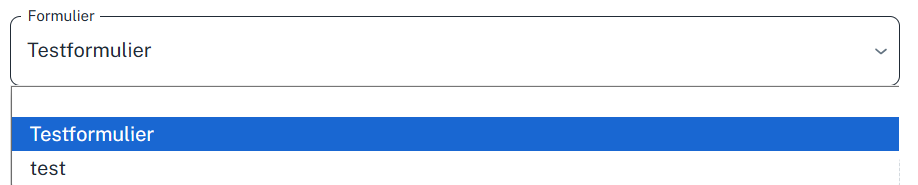
A representation of what it looks like when you click on Form while editing a page. If you click on the empty space (in this case above Test form), no form will be displayed on the page.
Is anything unclear or do you have any other questions/comments? Send us an email at office@greatstayapp.com, fill in our enquiry form or call us on +31 (0)85 40 15 336.
Was this article helpful?
That’s Great!
Thank you for your feedback
Sorry! We couldn't be helpful
Thank you for your feedback
Feedback sent
We appreciate your effort and will try to fix the article