Would you like to make changes to the style of a page, such as changing the background color? You can!
1. Click on “Pages” on the left-hand side.
2. Click on the three dots next to the page where you want to add/edit text, and click on edit
3. Scroll down a little, and on the right-hand side you will see the following:
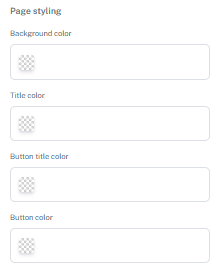
If you want to make a change here, you need to use hexadecimal color codes. Find more information about color codes here.
- Page background color: change the background color of the page
- Title color: change the color of all text on the page. Within forms, the colour of the questions will not change, but the text in the bars/questions will. Please note: the colour of any text set as ‘Heading’ will not change
- Button title colour: changes the text (‘Submit’) in a form button.
- Button color: changes the color of the button in a form. If nothing is set here, the color of the button will be the same as the secondary color in Metadata.
4. Press the purple ‘Save’ button.
Please note: Once you have saved, or if you edit the page later, you will no longer be able to see which colors you have set in the CMS. If you do not change them, they will remain as you have set them.
However, we recommend not using page styling, apart from the page background colour. All text on new pages will automatically be black, the secondary colour is often in line with the rest of the web app, and the page background colour is white by default. For readability, it is best to have a light colour as the background and black text.
Is anything unclear or do you have any other questions/comments? Send us an email at office@greatstayapp.com, fill in our enquiry form or call us on +31 (0)85 40 15 336.
Was this article helpful?
That’s Great!
Thank you for your feedback
Sorry! We couldn't be helpful
Thank you for your feedback
Feedback sent
We appreciate your effort and will try to fix the article